

Editing products
You can edit your Print Trail products individually, or in bulk.
Edit a single product
To edit a single product manually in the Print Trail app, follow these steps:
- Go to the product’s details page
- Follow the instructions as detailed on ‘Adding product details’
Edit print-on-demand and inventory settings
Editing a product’s production settings (print-on-demand and inventory) can only be done per-product, via the Print Trail app.
For detailed instructions, see these help articles:
Edit products in bulk
Products can be updated in bulk using Print Trail’s product import functionality (via CSV file).
Important: Steps to import product updates are the same as the new product import, except:
- The product importer matches rows in your CSV using the
skufield, so this field must match the relevant sku existing already on a product in your Print Trail team (else, if a new SKU is detected, this will result in a new product) - Any empty fields in your CSV data will be ignored (i.e. empty CSV fields will not overwrite data)
To import product updates:
- Prepare your products CSV (see product import help page for details)
- Go to: Products > Import
- Upload your CSV
- A preview will identify any products which are to be updated, and any potential issues will be highlighted
- When you’re happy to proceed, click ‘Import’
👉 Note: Print-on-demand settings, inventory settings, and SKU can’t be updated via product import.
Updating a product’s status
A product can be set to active either on its details page, or via product import update. However, there are checks in place to prevent a product being made active, when not all its settings are complete.
Setting a product’s status on its detail view:
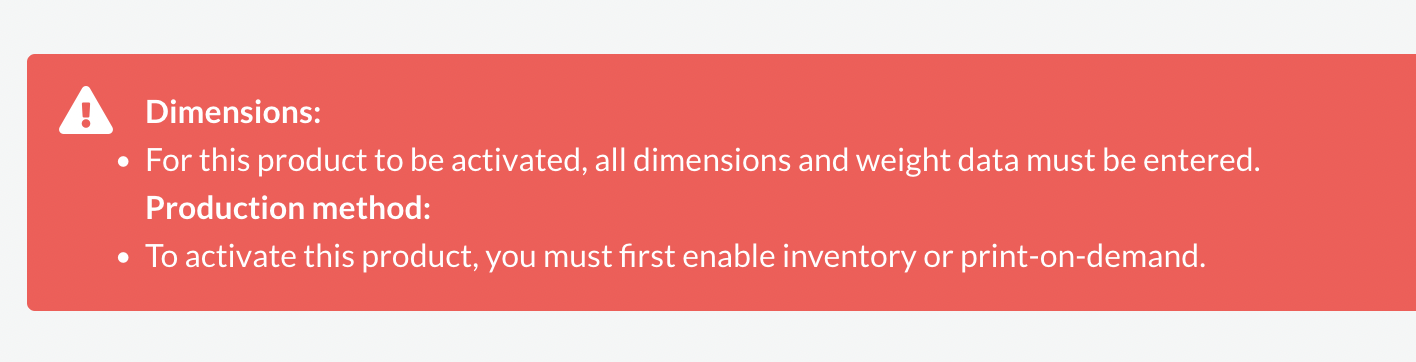
If your attempt to set a product to active is unsuccessful, you will see a message with steps required to resolve this (usually it means the product is missing some required data).
⚠️ Inactive products can’t be ordered