

Medusa
The Print Trail for Medusa plugin sends orders for your Print Trail products to Print Trail automatically, and brings stock levels, fulfilment progress and tracking numbers back into Medusa.
The Print Trail for Medusa plugin, medusa-plugin-print-trail, is free to install and use. It is a plugin for Medusa v2.
⚠️ An active Print Trail account is required to use the Print Trail for Medusa plugin.
This guide is for the store owner and their developer. Installing the plugin is your developer’s job (step 2); the rest is done in the Medusa admin and the Print Trail app. The Medusa plugin reference has the full configuration and developer detail.
In this guide, the Medusa order is your customer’s order in your store, and the Print Trail order is the order the plugin creates for it in Print Trail. Print Trail ships a Print Trail order as one or more fulfilments, each a parcel.
What the plugin does
For each Medusa order that contains Print Trail products, the plugin:
- Creates a Print Trail draft order when the Medusa order is placed, containing only the Print Trail lines. A product is a Print Trail product when it is in a shipping profile served by a Print Trail shipping option, so a basket can mix Print Trail products with others, which you fulfil as usual.
- Confirms the Print Trail order when the Medusa order is placed or, if your developer sets the
confirmOn: "payment.captured"option, when the Medusa order’s payment is captured. That option is for manual or bank-transfer payments. Print Trail then produces and ships the Print Trail order. - Brings fulfilment progress and tracking back as Medusa fulfilments and shipments, one per Print Trail parcel. The customer gets a shipment email for each parcel, and the Medusa order completes when the last parcel ships.
- Carries cancellations, order edits, claims and exchanges made in Medusa to Print Trail, while Print Trail can still act on them. Refunds, returns and address changes are recorded on the Medusa order’s Print Trail timeline.
- Keeps Medusa inventory current from Print Trail’s stock, including print-on-demand titles, which stay buyable.
- Handles pre-order titles. Print Trail holds them and releases them when the book goes live, and your storefront can show a pre-order badge and date.
- Prices Print Trail shipping at checkout from rate cards, optionally with different prices by country.
Prices are never sent to Print Trail. The plugin sends SKUs, quantities, the delivery details and a link back to the Medusa order in your admin.
Requirements
- Medusa 2.17.2 or later (Medusa v2). The plugin is tested on Medusa 2.17.2 and 2.22.1, with Node 22
- A Print Trail team with a channel for this store (see below). Use a channel of its own, not the ‘Standard’ channel
- Your Medusa backend must be reachable from the internet over HTTPS, on a public host name, so that Print Trail can send it updates. A store on your own computer or on an
http://address cannot receive them; to test one, put it behind an HTTPS tunnel with a public host name - Medusa’s Redis locking provider, if the store runs more than one Medusa process. A separate server and worker count as two. The lock is what stops two processes sending the same Medusa order to Print Trail twice
- Your Medusa SKUs must match your Print Trail product SKUs (or you can set a per-variant override — see Check your SKUs)
Before you go live
The reference’s production checklist lists what your developer should check before the store takes live orders. Three items concern you too:
- Switch payments and Print Trail credentials to live together. If only one of them is live, either Print Trail does not make your real orders or it makes your test ones.
- Cancel your test orders in Medusa first. Every few minutes the plugin sends Print Trail any open Medusa order from the last 7 days that has Print Trail lines but no Print Trail order. Test orders still open in Medusa when the live credentials go in will be sent to Print Trail, and made.
- Set an admin email address (
PRINT_TRAIL_ADMIN_EMAIL, below), so that someone is told when a cancellation comes too late to stop Print Trail.
Set up
1. Create a channel and credentials in Print Trail
In the Print Trail app go to Settings > Channels and create a channel for your store. You need two values from it:
- the Channel ID, shown in the channel’s ID column (for example
acme-shop) - the API token: click Token on the channel’s row. It is shown once when generated; generating a new one revokes the old one
👉 You do not need to copy the webhook secret. The plugin fetches it from Print Trail when you connect (step 3).
2. Install the plugin (your developer)
In the Medusa backend, run:
npm install medusa-plugin-print-trailThen add two blocks to medusa-config.ts: the plugin itself, under plugins, and the Print Trail fulfilment provider, in the Fulfillment Module’s list of providers. Keep Medusa’s manual fulfilment provider in that list, or the store’s existing manual shipping options stop working. The reference’s Configure section has the configuration to copy and every option.
Set these environment variables:
PRINT_TRAIL_BASE_URL:https://api.printtrail.com, the Print Trail API endpointPRINT_TRAIL_CHANNEL_ID: the Channel ID from step 1PRINT_TRAIL_API_TOKEN: the API token from step 1MEDUSA_BACKEND_URL: the backend’s publichttps://URL. Print Trail sends its updates (webhooks) thereMEDUSA_ADMIN_URL: the Medusa admin’s URL, so that each Print Trail order links back to its Medusa orderPRINT_TRAIL_ADMIN_EMAIL: who is emailed when a cancellation comes too late. A comma-separated list is accepted
Finally, create the plugin’s tables and restart Medusa:
npx medusa db:migrateNothing is sent to Print Trail until the credentials are set and Medusa has restarted. Changing a credential later also needs a restart.
3. Connect
In the Medusa admin go to Settings > Print Trail and click Test connection. A successful test shows the store as Connected, with your channel and team.
The test also registers the webhook: it tells Print Trail to send updates on Print Trail orders, fulfilments, tracking and stock to your store, and fetches the channel’s webhook secret from Print Trail. The Webhook section then shows Registered here, with the webhook secret From Print Trail.
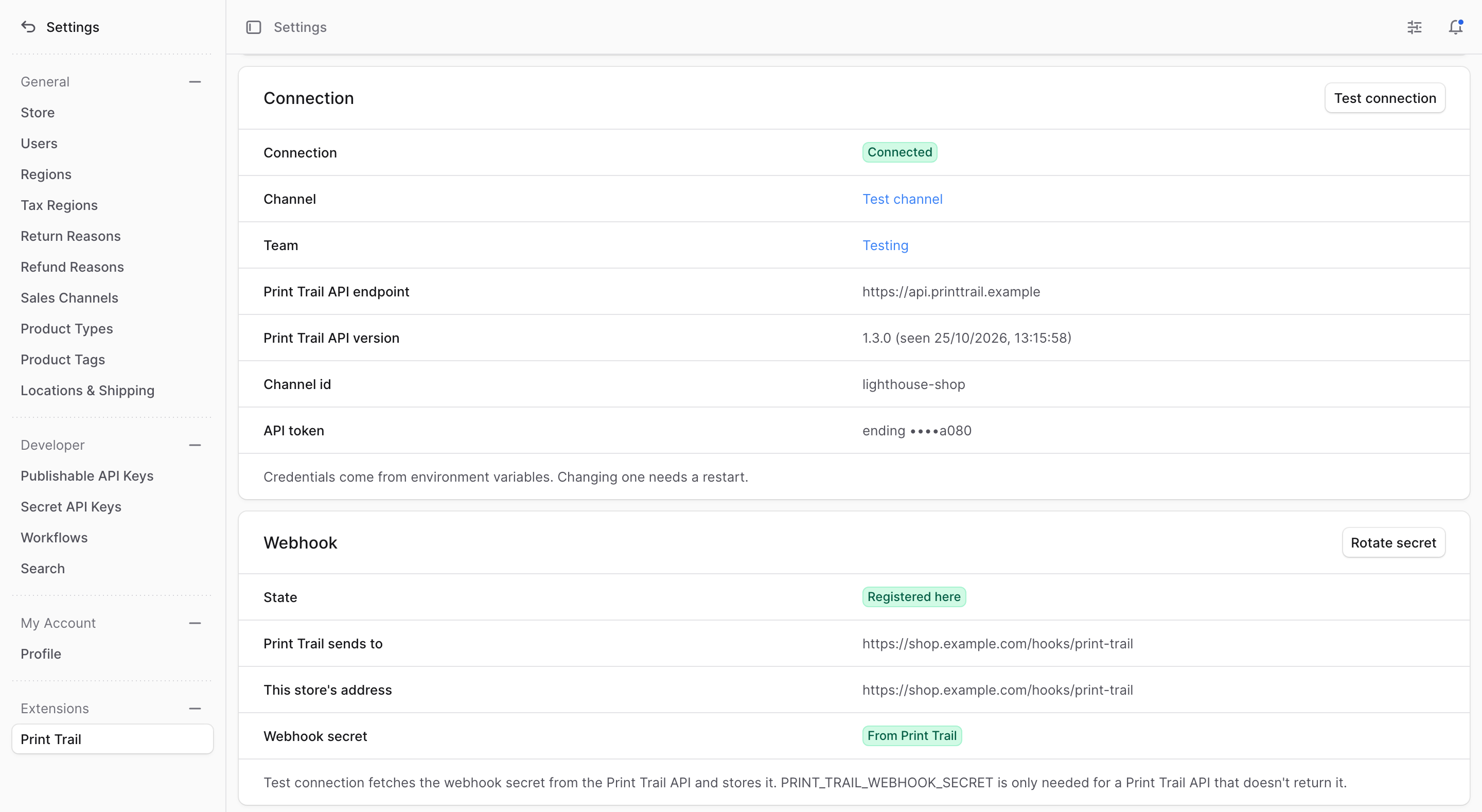
Print Trail only sends updates to a public https:// address (see Webhook URL requirements), and refuses to register any other. If the page warns that your backend’s address is not one, ask your developer to correct MEDUSA_BACKEND_URL before you connect.
4. Choose your products
In Medusa, create a shipping profile, for example “Print Trail”, and give it to each product Print Trail fulfils. The product’s variants follow it.
Products in a profile served by a Print Trail shipping option (step 5) are the ones sent to Print Trail. Products in your other profiles are left for you to fulfil as usual. Medusa asks the customer for a shipping method for each profile in the basket, so one Medusa order can mix both.
5. Set up shipping options
On Settings > Print Trail > Shipping (the Print Trail shipping options link on the settings page), create a Print Trail shipping option for each delivery method you offer. Each option is for a service zone and the shipping profile from step 4, and has:
- a Print Trail method, from the shipping methods your channel offers
- a rate card: prices in weight bands, with weights in grams, in one currency. A store that sells in two currencies needs one option per currency
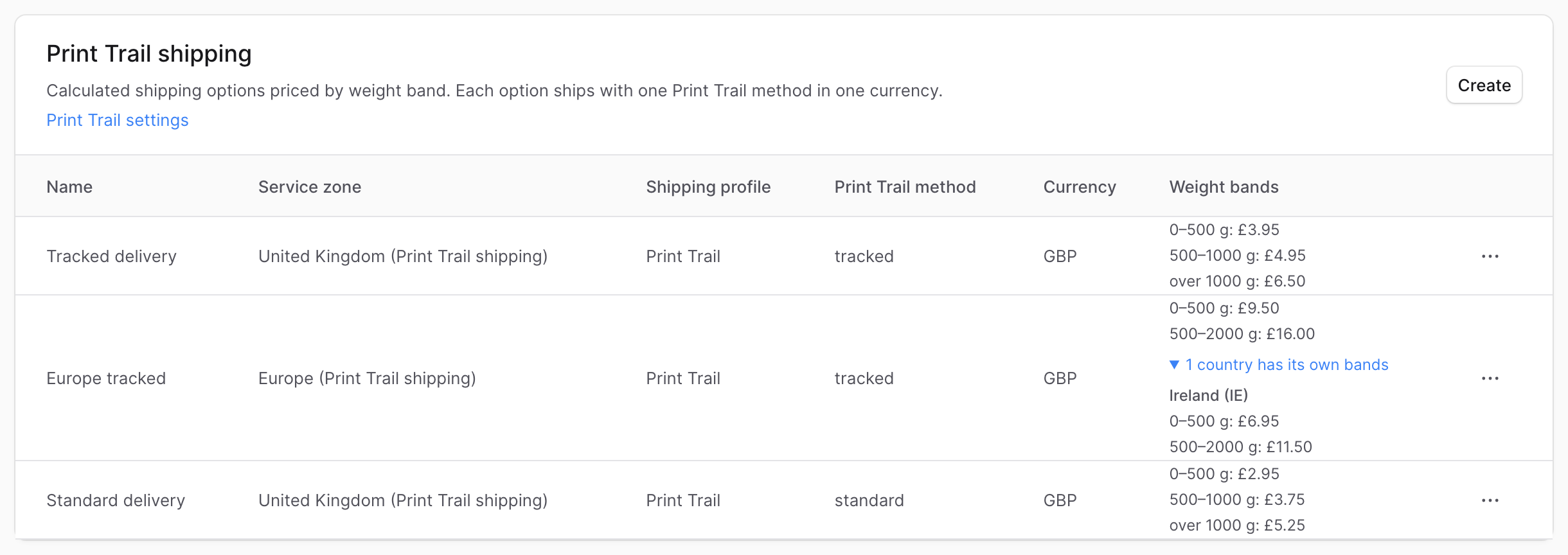
A rate card can also give some destination countries prices of their own. The shipping page lists these countries but does not edit their prices; your developer sets them (see Prices by country).
⚠️ Each option’s fulfilment set must be linked to a stock location. Otherwise the plugin cannot create the Medusa fulfilments when Print Trail dispatches.
6. Check your SKUs
Variants are matched to Print Trail products by SKU, ignoring case. If a variant’s SKU is different from the Print Trail SKU, open the variant’s page and set the Print Trail SKU in its Print Trail panel (Edit SKU). Leave it empty when they match.
Saving a variant checks its SKU with Print Trail. The SKU health section of Settings > Print Trail lists the SKUs Print Trail does not recognise. Sync stock now, on the same page, runs a full stock sync straight away, which also brings every variant’s SKU check up to date.
7. Check with a test order
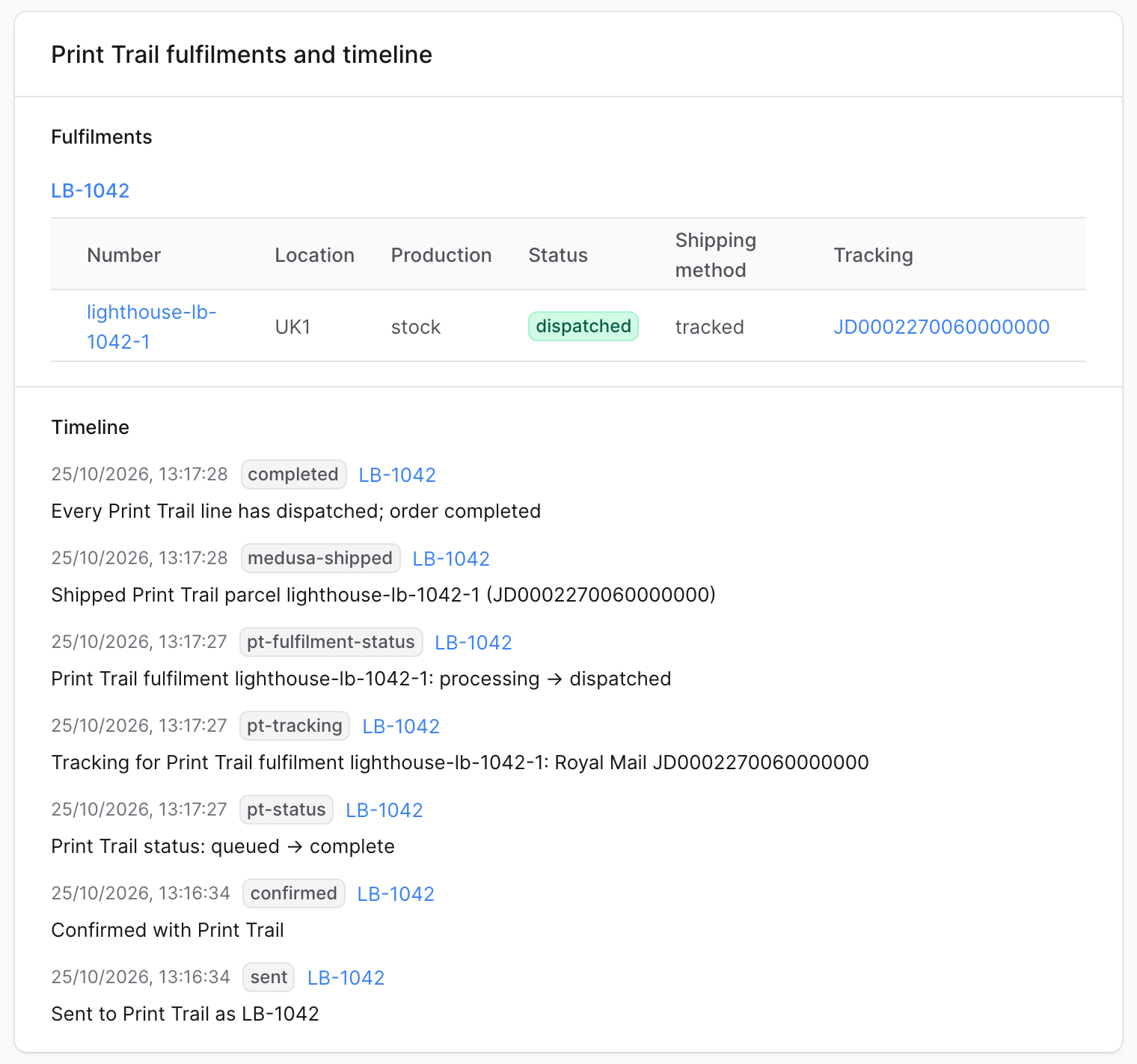
Place a small order in your store for a Print Trail product (and capture its payment, if the plugin waits for payment). On the Medusa order page, the Print Trail panel should show:
- the Print Trail order, confirmed, with its Print Trail order number
- then, as the Print Trail order progresses, its fulfilments and tracking, with each step on the timeline
Cancel the test order in Medusa afterwards if you do not want it shipped: the plugin cancels the Print Trail order too.
How updates reach your store
The plugin relies on webhooks. When you run Test connection it registers your store’s webhook URL with Print Trail, and from then on Print Trail pushes each change — Print Trail order confirmed, fulfilment started, tracking number issued, parcel dispatched, Print Trail order cancelled, stock moved — to your store as it happens. Changes to Print Trail orders arrive within seconds; stock changes are batched and delivered a little less often. Print Trail queues and retries deliveries, so a brief outage does not lose them.
Polling is the fallback, not the mechanism. Three background jobs run on Medusa’s scheduler:
| Job | Default schedule |
|---|---|
| Sweep: retries anything that failed, and sends Medusa orders that were missed | Every 5 minutes |
| Reconcile: asks Print Trail for Print Trail orders changed since the last run, in case a webhook was missed | Every 6 hours |
| Full stock sync | Daily at 03:00 (server time) |
Developers can change the schedules with environment variables; see Job schedules.
Day to day
The Print Trail panels on a Medusa order. On each Medusa order page, the Print Trail panel shows the Print Trail order and its status, and the Print Trail fulfilments and timeline panel lists the Print Trail order’s fulfilments, their tracking, and everything the plugin did and Print Trail reported. The Print Trail panel’s actions are Refresh from Print Trail, Resend / retry confirm and, if Print Trail cancelled the Print Trail order, Resend as a new Print Trail order.
Needs attention. A Medusa order that needs a person is flagged in its Print Trail panel and listed on Orders > Needs attention. Most flags clear themselves: the flag on a Medusa order that could not be sent clears once it is sent to Print Trail, and a problem Print Trail reports with the Print Trail order clears once Print Trail no longer reports it. Mark as resolved clears the rest, such as a cancellation that came too late. It changes nothing at Print Trail.
Editing a Medusa order. Edits to a Medusa order are sent to its Print Trail order until production starts; after that, the timeline says why a change could not be applied. Items added by a claim or an exchange are sent as a new Print Trail order, numbered with a -2, -3 suffix. An address change before the Print Trail order is confirmed re-sends it; after confirmation the change is only noted on the timeline, so make it to the Print Trail order in the Print Trail app as well.
Cancelling. Cancel the Medusa order and the plugin asks Print Trail to cancel the Print Trail order. If Print Trail has already started on it, the Medusa order’s Print Trail panel warns that cancelling may not stop it. A cancellation that comes too late, after Print Trail has dispatched, is noted on the Medusa order and flagged, and the admin email address gets an email. Once the plugin has created Medusa fulfilments for dispatched parcels, Medusa no longer lets you cancel the Medusa order; use a return instead.
Refunds and returns in Medusa are noted on the timeline and change nothing at Print Trail. A full refund before the Print Trail order is confirmed stops it being confirmed. A full refund after that is flagged, because Print Trail may still ship the Print Trail order: cancel the Medusa order if it should not ship.
Stock. Medusa inventory for Print Trail variants is updated from Print Trail as it changes (by webhook) and in full once a day, or straight away with Sync stock now on Settings > Print Trail. Print-on-demand titles stay buyable: the plugin turns backorders on for them in Medusa. For a pre-order title, the variant’s Print Trail panel shows its pre-order status, the expected date and any pre-order limit with how many are left. A Medusa order for it is sent to Print Trail and confirmed as usual, and its pre-order items wait in a Print Trail fulfilment of their own, shown as Waiting for pre-order release, until the title goes live.
Emails. The plugin emails the customer once per parcel, when the parcel has a tracking number. The email for a released pre-order says “Your pre-order from order #… has shipped”. The store needs an email provider set up in Medusa (a notification provider for email).
Troubleshooting
| Message in the Medusa admin | Meaning |
|---|---|
| Reconnect Print Trail | Print Trail refused the API token or Channel ID: one of them is wrong, or the token has been regenerated. Your developer sets the right values and restarts Medusa; then click Test connection. |
| The Print Trail channel is inactive | The channel is switched off in Print Trail, which refuses its requests and sends it no updates. Medusa orders, cancellations and edits wait meanwhile. Switch the channel on in Settings > Channels, then click Test connection. What was waiting is sent to Print Trail within about 15 minutes. |
| Print Trail didn’t register the webhook or Print Trail never accepts this address | The backend’s address is not https:// on a public host name. Your developer puts the backend behind HTTPS (an HTTPS tunnel, for a store on their own computer) and sets MEDUSA_BACKEND_URL; then click Test connection. |
| The order is over Print Trail’s limits | Print Trail accepts at most 500 lines per order, order numbers and SKUs of up to 255 characters, and whole-number quantities. Correct the Medusa order (for example, a shorter Print Trail SKU on the variant, or an order edit to fix a quantity), then use Resend / retry confirm. |
Updates are not arriving. Changes to a Print Trail order should appear on the Medusa order within seconds. If they only appear hours later, the reconcile job is doing the work and webhooks are being blocked or refused.
- If anyone in your team regenerated the webhook secret in Print Trail’s Settings > Channels since you connected, the plugin refuses updates signed with the new one. Click Test connection: it fetches the new secret.
- Check that the Webhook section of Settings > Print Trail shows Registered here. If it shows Sending elsewhere, another copy of your store has registered the channel’s webhook; Test connection asks before sending the updates to this store instead.
- Otherwise, ask your developer to check that nothing in front of the backend, such as a firewall or proxy, blocks
POSTrequests to/hooks/print-trail.
The reference’s Troubleshooting section covers problems for developers, such as migrations and admin errors.
For developers
The Medusa plugin reference has every configuration option, the workflows and their hooks (for example, to hold lines back or change the Print Trail order number), the events the plugin emits, its admin API routes and the production checklist. For storefronts, the stock sync writes print_trail_pre_order into the metadata of each variant it manages: the expected publication date while the title is on pre-order (or true when Print Trail has no date), and nothing once it is not. The reference’s Pre-order products section explains how to read it on Medusa 2.21 and later. The package itself is on npm.